Bill Claim
The Bill Claim module in PrismERP is used when employees need to claim expenses incurred for official work. Users can define bill claim purposes, submit claims with supporting documents, and track them through the approval process. Once a claim is approved and the sanctioned amount is finalized, the payment can be disbursed and completed through the voucher workflow.
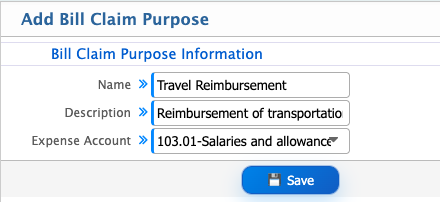
Add Bill Claim Purpose
| Field | Action |
|---|---|
| Name | Enter a unique name for the bill claim purpose, such as Travel Expense, Accommodation Expense, or Mobile Bill Reimbursement. |
| Description | Enter a description explaining the purpose and usage of the bill claim category. |
| Expense Account | Select the expense account to which bill claims under this purpose will be posted. |
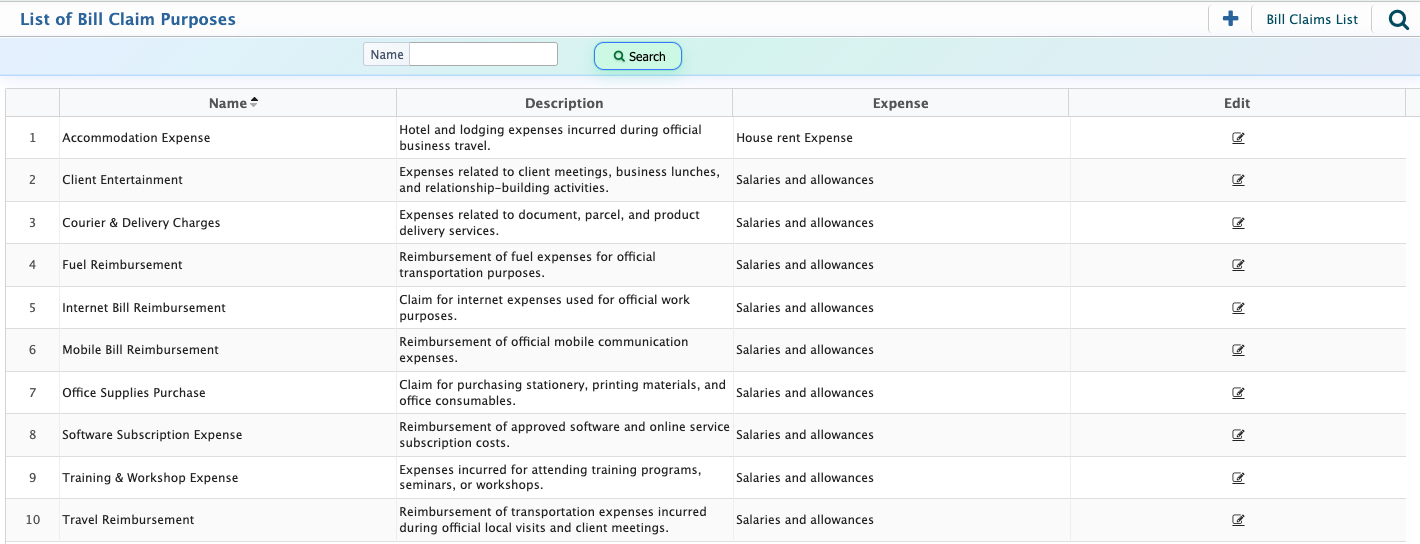
After creating a bill claim purpose, it will appear in the Bill Claim Purpose List. Users can use the Search Panel to quickly locate a specific purpose based on the available search criteria. Existing purposes can be opened and edited whenever updates are required, such as changing the description or assigning a different expense account.
Add Bill Claim
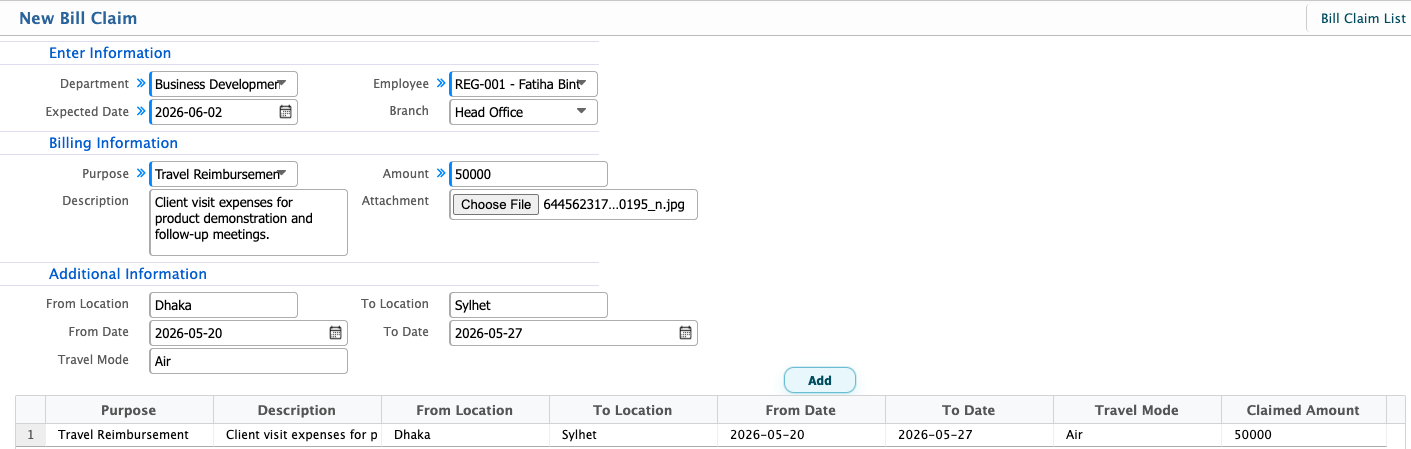
The Bill Claim entry form is used to submit reimbursement requests for expenses incurred during official work. Users can provide claim details, attach supporting documents, and enter travel information when the claim is related to business travel.
| Field | Action |
|---|---|
| Department | Select the department under which the bill claim is being submitted. |
| Expected Date | Select the expected date for processing or reimbursement of the claim. |
| Employee | Select the employee who is submitting the bill claim. |
| Branch | Select the branch associated with the claim. |
| Purpose | Select the bill claim purpose for which reimbursement is being requested. |
| Amount | Enter the total amount being claimed. |
| Description | Enter details about the expense and the reason for the claim. |
| Attachment | Upload supporting documents such as receipts, invoices, tickets, or bills. |
| From Location | Enter the starting location of the travel, if applicable. |
| To Location | Enter the destination location of the travel, if applicable. |
| From Date | Select the start date of the travel period. |
| To Date | Select the end date of the travel period. |
| Travel Mode | Enter or select the mode of travel used for the trip. |
After creating a bill claim, it will appear in the Bill Claim List, where all submitted claims are displayed for processing. Users can use the Search Panel to find a specific claim based on the available search criteria.While a bill claim remains in the Pending state, users can edit the claim information, update attachments, or make corrections if required. Depending on the configured workflow, authorized users can Recommend, Approve, or Reject the bill claim. After approval, the responsible authority can review the claimed amount and enter the Sanctioned Amount, which may be equal to or different from the requested amount.By clicking on the Bill Number, users can open the details view and review the complete claim information, including attachments, approval records, claimed amount, and sanctioned amount. Once finalized, the bill claim can be processed for disbursement and closed after completion.
Add Bill Disburse
The Bill Disburse form is used to release approved and sanctioned bill claim amounts to employees. Users can select the approved bill claim, choose the payment method, and record the amount being disbursed.
| Field | Action |
|---|---|
| Date | Select the date of the bill disbursement transaction. |
| Branch | Select the branch from which the payment will be made. |
| Instruction | Enter any notes, remarks, or instructions related to the disbursement. |
| Payment Options | Select the payment method such as Cash, IOU, or Bank. |
| Account | Select the account from which the disbursement amount will be paid. |
| Voucher Type | Select the voucher type that will be used for the transaction. |
| Employee | Select the employee who will receive the disbursement. |
| Bill No | Select the approved bill claim for which payment is being made. |
| Active Accounts | Select the employee-associated account if applicable. |
| Disburse Amount | Enter the amount to be disbursed against the selected bill claim. |
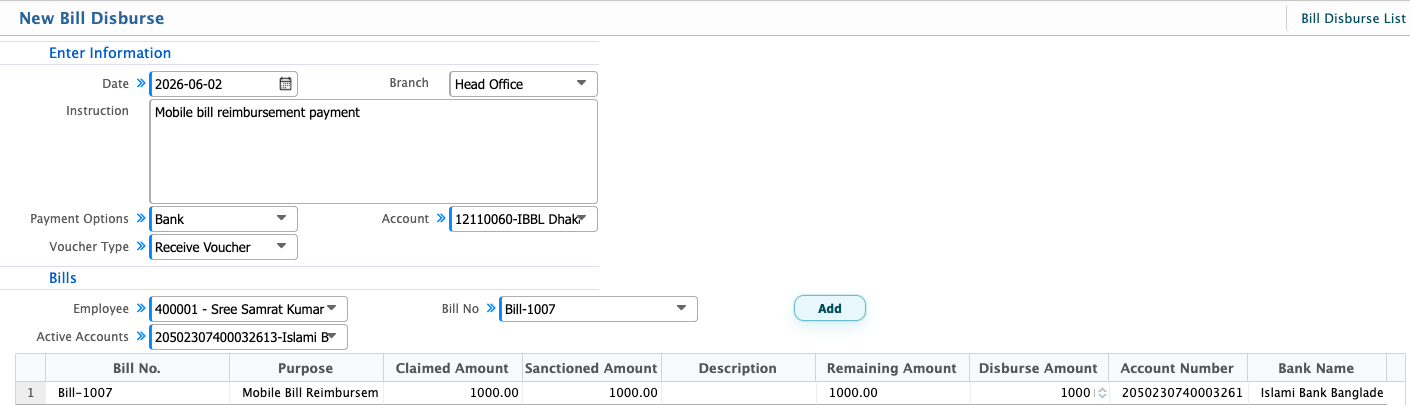
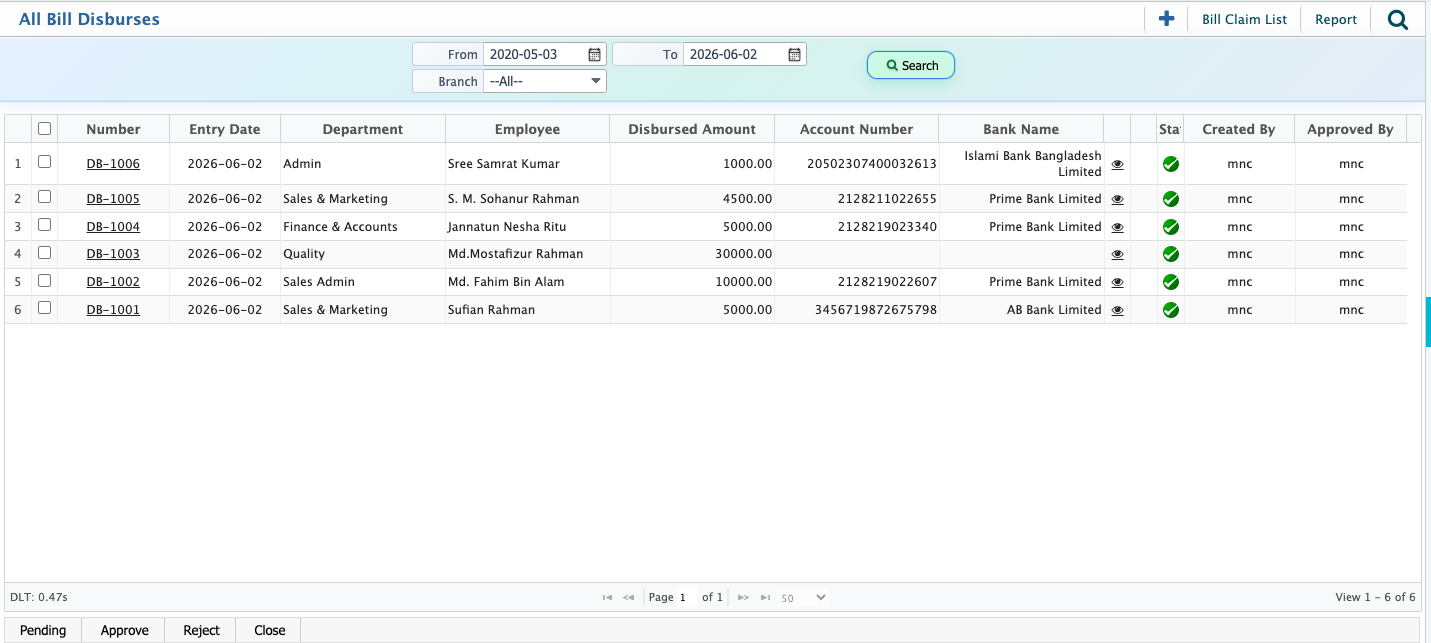
After creating a bill disbursement, it will appear in the Bill Disburse List, where all entries are displayed for processing. Users can use the Search Panel to locate specific records based on available filters.Depending on the configured workflow, authorized users can approve or reject the disbursement entry. Once approved, the system generates the associated voucher based on the selected voucher type. To complete the process, users must open the voucher and move it through its workflow until it reaches Approved and Completed status.The bill disbursement is considered fully processed only after the associated voucher has been completed.