Task Management
Task Management in PrismERP is used to create, assign, and track work items across teams and departments. It supports structured task organization through task types, goals, categories, and individual tasks. Tasks move through defined workflow stages, can be assigned to multiple users, and are monitored until completion, review, and closure. The module also supports batch task creation, workload distribution, Kanban tracking, and task administration.
Add Task Type
| Field | Action |
|---|---|
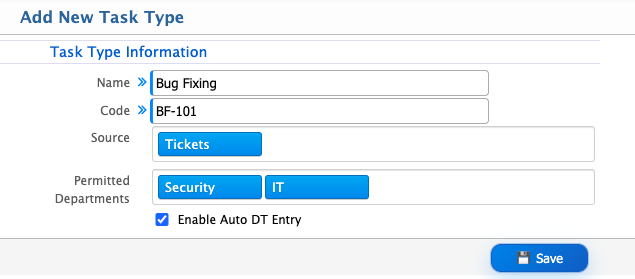
| Name | Enter a unique name for the task type (e.g., Development Task, Support Task, Meeting Task). |
| Code | Enter a unique code to identify the task type. |
| Source | Select the module(s) from which tasks can be created using this task type. |
| Permitted Departments | Select specific departments that can use this task type, or choose All to make it available across all departments. |
| Enable Auto DT Entry | Enable this option to automatically create Daily Task (DT) entries based on the configured task type. |
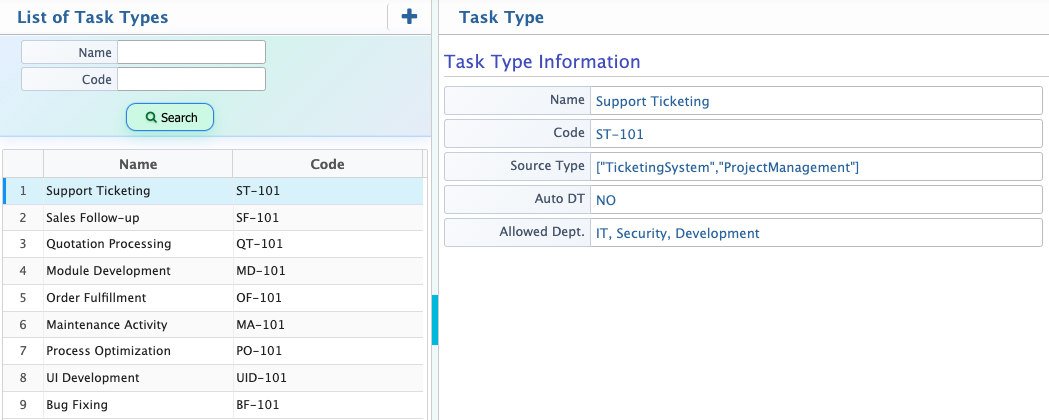
After creating a task type, it becomes available in the Task Type List. Users can view all configured task types along with details such as name, code, source module, permitted departments, and auto DT entry status. The search panel allows filtering based on available criteria. New task types can be created from the list using the add option, and existing records can be edited when configuration updates are required.
Add Task Goal
| Field | Action |
|---|---|
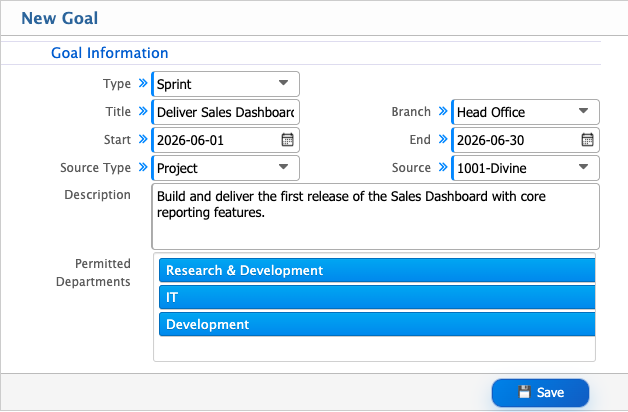
| Type | Select the goal type. Regular is used for ongoing objectives, and Sprint is used for time-bound goals within a sprint cycle. |
| Title | Enter the goal title. |
| Branch | Select the branch where the goal will be applied. |
| Source Type | Select the source category linked to the goal. |
| Source | Select the specific source based on the selected type. |
| Description | Enter a detailed description of the goal, including objectives and expected outcomes. |
| Permitted Department | Select departments that can access or manage this goal. |
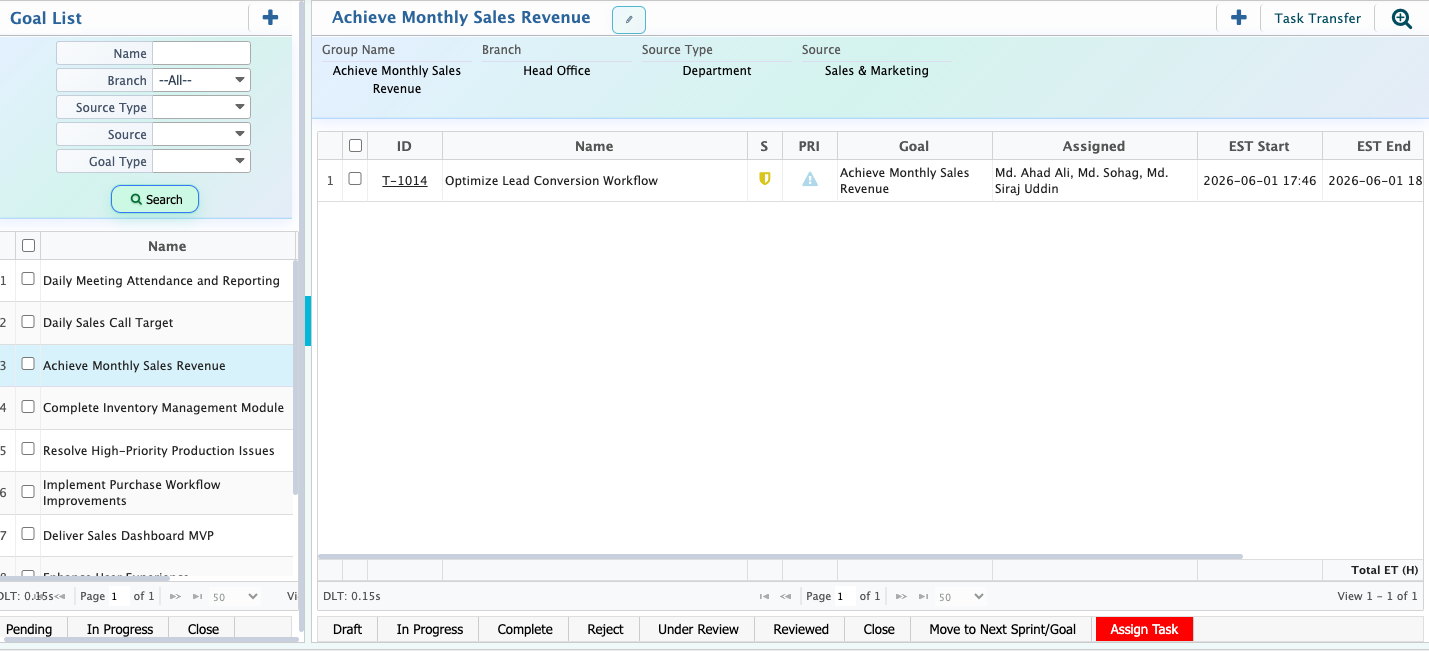
After creating a goal, it appears in the Goal List, where all goals and sprints are displayed in a structured format. Users can filter goals using the search panel based on branch, source type, goal type, and other criteria. Each goal can be opened to view associated tasks, including assignments, priorities, estimated timelines, and progress details. Tasks under a goal can be updated, assigned to multiple users, commented on, deleted, or transferred to another goal or sprint.
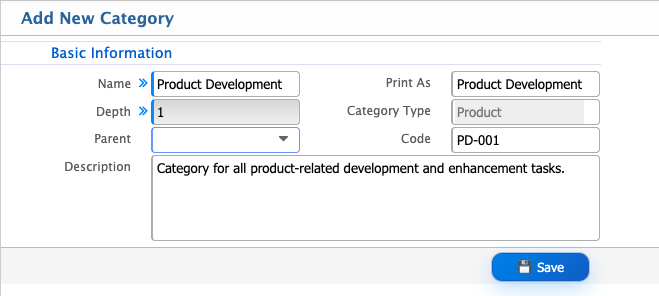
Add Task Category
| Field | Action |
|---|---|
| Name | Enter the task category name. |
| Parent | Select a parent category if creating a sub-category. |
| Code | Enter a unique category code. |
| Description | Enter a detailed description of the category. |
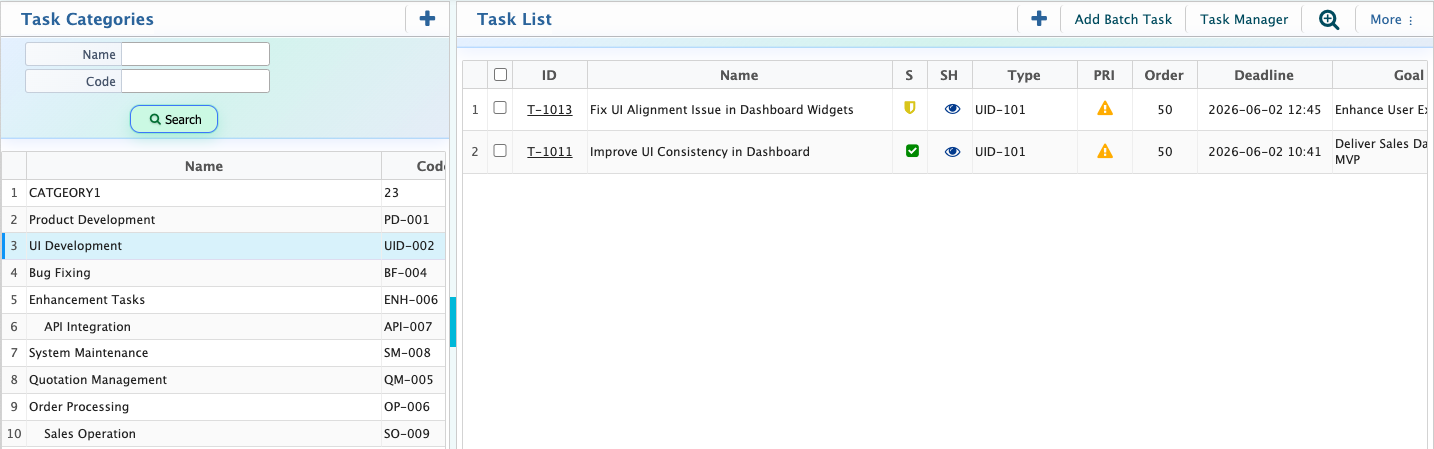
After creating a task category, it is displayed in the Task Category List in a hierarchical structure. Users can search categories, assign employees, and delete records from the list view. Task assignments can also be updated directly without opening individual category records.
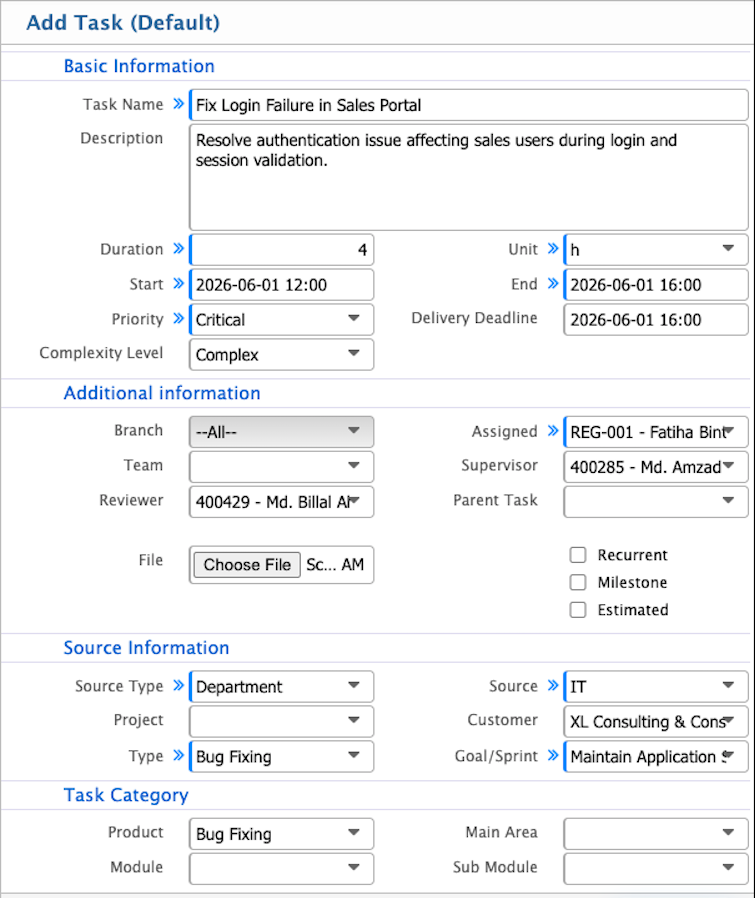
Add Task
| Field | Action |
|---|---|
| Task Name | Enter a clear name that defines the task. |
| Description | Enter detailed task information including scope and requirements. |
| Duration | Enter the estimated time required to complete the task. |
| Unit | Select the unit for duration measurement. |
| Start | Define the planned start date and time. |
| End | Define the expected completion date and time. |
| Priority | Select the task priority level. |
| Delivery Deadline | Set the final deadline for delivery. |
| Complexity Level | Define the complexity level of the task. |
| Branch | Select the branch where the task will be executed. |
| Assigned | Assign the task to a user or team. |
| Team | Select the responsible team. |
| Supervisor | Assign a supervisor for monitoring. |
| Reviewer | Assign a reviewer for approval. |
| Parent Task | Link to a parent task if applicable. |
| File | Attach supporting files. |
| Recurrent | Enable recurring task setup. |
| Milestone | Mark as a milestone task. |
| Estimated | Enter estimated effort. |
| Source Type | Select the origin type of the task. |
| Source | Select the specific source. |
| Type | Select task classification type. |
| Goal/Sprint | Link task to a goal or sprint. |
| Product | Select related product. |
| Main Area | Select main functional area. |
| Module | Select system module. |
| Sub Module | Select sub-module. |
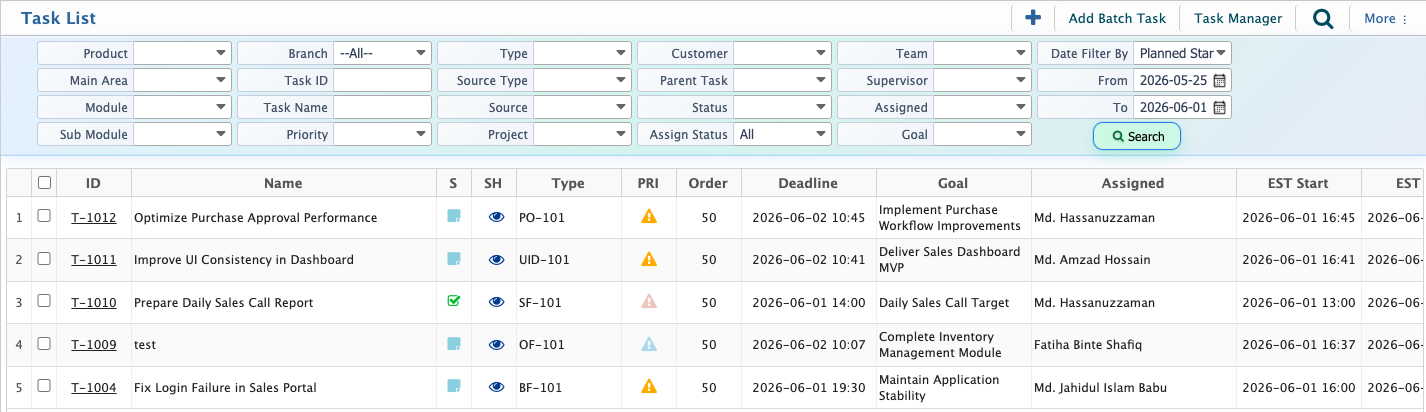
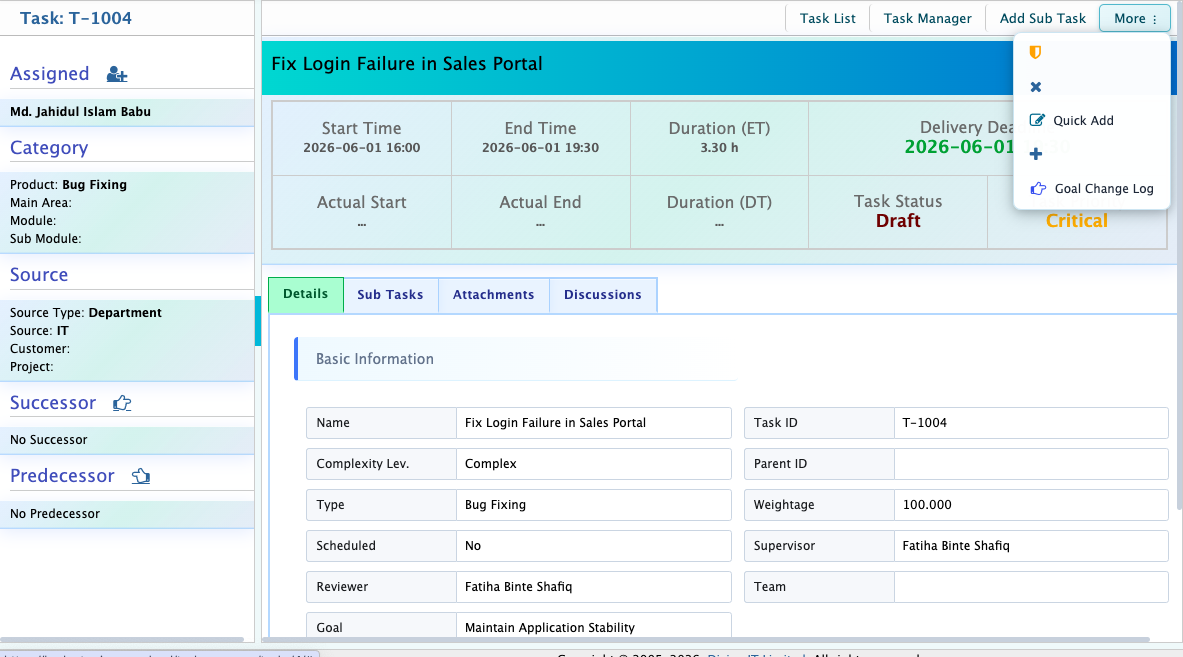
After creating a task, it appears in the Task List where all tasks are organized for tracking. Users can search, assign multiple assignees, and edit task details. Clicking a task number opens the Task Details View, which contains full task information including assignments, attachments, and workflow status.
Tasks move through workflow stages from Draft to In Progress to Completed. Tasks can be rejected if required. Multiple assignees can be added, and comments and attachments can be included. After completion, tasks are submitted for review. The reviewer can approve the task or return it for further updates. Approved tasks are marked as Reviewed.
Add Batch Task
Batch Task allows users to create multiple tasks at once by defining common information and adding multiple task rows with individual details such as name, duration, start, end, and deadline.

Batch tasks can also be uploaded manually using the Batch Task Uploader by importing structured files containing multiple task entries.